

By Jason Arend
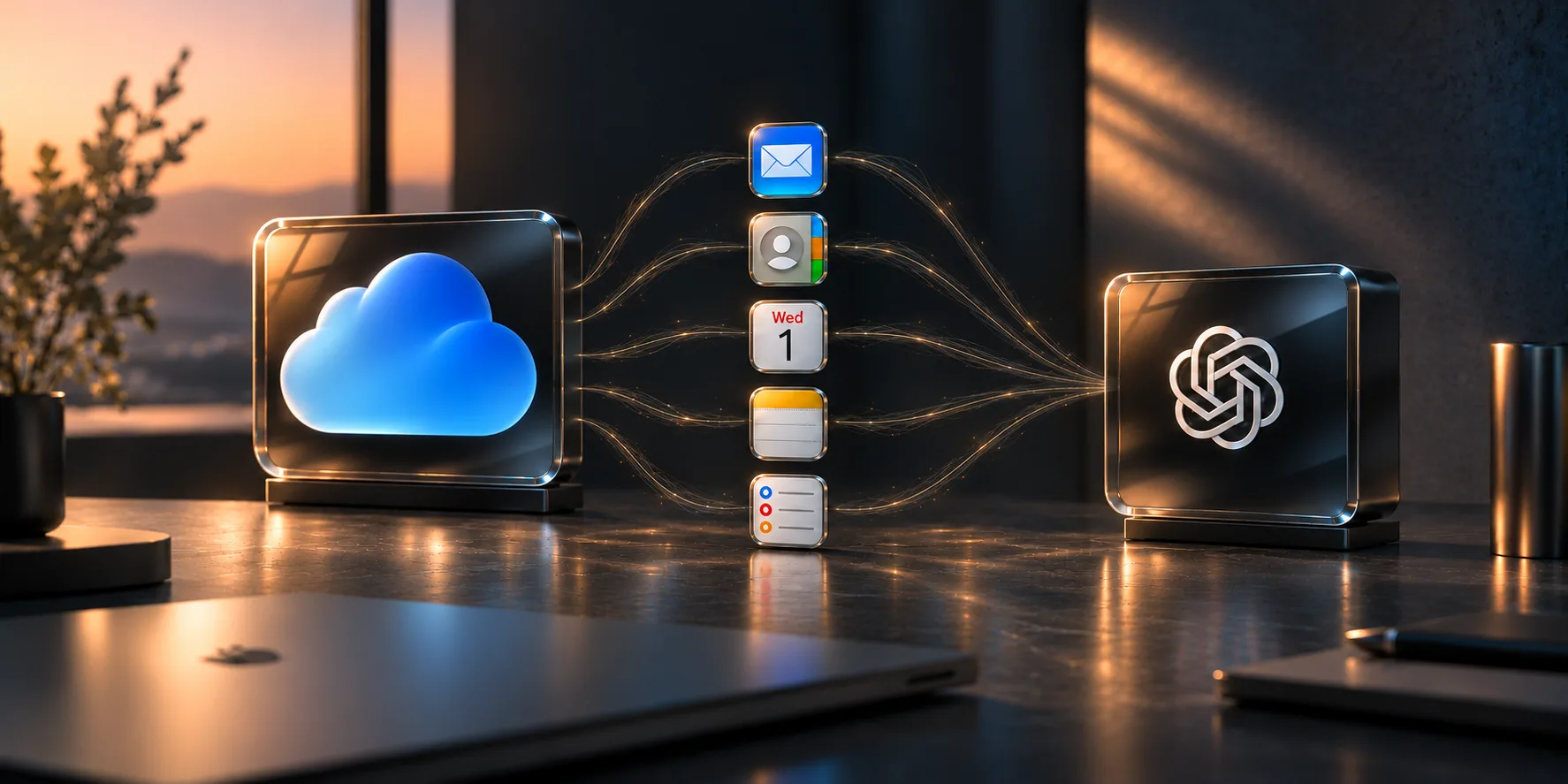
iCloud for Agents is a free, open-source iCloud MCP server for Mac that connects iCloud Mail, Calendar, Contacts, Apple Notes and Reminders to AI assistants such as ChatGPT, Claude, Meta Muse, Grok Bot, OpenClaw, and Hermes. You choose which services to enable and what your assistant can read or change.
My life is spread across personal and professional accounts. Gmail and other services handle much of my work, while Apple apps hold much of my personal life. I wanted my assistant to work across that information without making me move everything into one ecosystem or copy it into chat.
I could connect individual accounts, but I wasn’t finding an Apple connector that did everything I wanted: Mail, Calendar, Contacts, Notes and Reminders together, useful changes as well as reading, and enough control to let recurring tasks run within limits I chose.
So I built iCloud for Agents to fill that gap. It connects the Apple side while my assistant uses it alongside its Gmail, Outlook, Google Calendar and other connections.
Get iCloud for Agents on GitHub · Set it up with your AI agent · Star the project
What this iCloud MCP server connects
MCP stands for Model Context Protocol, a standard way for an AI assistant to use external tools. iCloud for Agents runs on your Mac and gives a compatible assistant tools for the Apple services you select.
- iCloud Mail: Search, read and summarize messages without marking them read. Continue through an older inbox, archive mail, move approved messages to recoverable Trash, restore messages, change read status and send approved plain-text email.
- iCloud Calendar: Review your schedule and create, update or delete personal events. Manage supported daily, weekly, monthly and yearly recurring series, individual occurrences and changes from a selected date forward.
- iCloud Contacts: Find contact details and create, update or delete records, including names, email addresses, phone numbers, organizations and notes.
- Apple Notes: Find and read notes, create notes from supplied content, append or replace text, organize folders and use supported formatting, plain lists and tables. Extract printed English text from eligible saved image attachments.
- Apple Reminders: Create and manage tasks and lists, with dates, priorities, alerts and supported repeat rules. Optional native features add flags, tags, subtasks, sections, list groups and supported custom Smart Lists.
A new setup starts with read-only Mail; the other services are disabled until selected. Advanced Notes and Reminders features may need an optional native backend and additional Mac permissions. The capability guide explains the available operations and their limits.
Mail, Calendar and Contacts connect to your iCloud account. Notes and Reminders use native Mac integrations. Your assistant can still use its separate Gmail, Google Calendar, Outlook or other connections alongside them.
Automate personal tasks across Apple apps
A useful assistant should be able to keep up with recurring work, not just answer the same request every day. If your AI client supports schedules or background tasks, you can use iCloud for Agents for routines like these.
Clean up your iCloud inbox automatically
Every evening, review my iCloud inbox and archive the newsletters and retail promotions I have approved for cleanup. Keep personal conversations, receipts, security alerts and anything uncertain. Mark archived messages read and give me a short recap in the morning.
The mail tools support bounded batches and saved progress, so the assistant can work through older messages rather than repeatedly reviewing only the newest arrivals. Approved cleanup can archive selected mail or move it to recoverable Trash. Neither action permanently deletes it.
I also want an assistant to know when to stop. Supported Mail read-state changes, archive and restore operations now keep durable records, so an interrupted operation can be inspected before the assistant tries it again. Local and HTTP clients sharing the installation coordinate supported operations, too. The changelog covers these improvements.
Build a morning briefing from Calendar Mail and Reminders
Each morning, compare today’s calendar, upcoming reminders and new personal emails. Put a short briefing in Notes with anything that changed, what I need to prepare and the next three things worth doing.
An appointment may still be on the calendar even though a later email changed the location or added something you need to bring. The briefing can bring that information together before you leave.
Keep travel plans and reminders current
Until I leave, check for updates to my trip emails and compare them with my itinerary note, calendar and packing list. Add new details to the trip note, flag conflicting times and add agreed tasks to my travel reminders. Ask before changing calendar events.
You can authorize selected Notes and Reminders operations within specific folders or lists, with limits on the fields and amount of work. Mail cleanup has its own approved account, folder and action scope. These ongoing permissions can be reviewed and revoked.
The assistant supplies the schedule, memory and decisions about what matters. The bridge enforces the configured service and operation scope; it does not decide whether an email is important. Scheduled runs need a running, reachable Mac. A remote assistant also needs its HTTPS connection to remain available. Calendar changes use a separate approval path, and standing Calendar grants are not currently supported.
Combine Mail Calendar Contacts Notes and Reminders in one request
The more interesting requests cross app boundaries. Describe what you want to accomplish and let the assistant gather the relevant information.
Prepare for an appointment using Mail Calendar and Notes
Find tomorrow’s appointment confirmation, compare the time and address with my calendar, and check my notes for questions I wanted to ask. Make one short prep note and a reminder for anything I need to bring.
Turn Apple Notes recipes into a Reminders shopping list
Find three recipes I saved in Notes for dinners this week. Combine duplicate ingredients into a grocery list in Reminders, keep the amounts and links to the recipes, and update my meal-plan note. Ask me about substitutions before adding them.
Find personal commitments that never became reminders
Look through my recent personal emails and notes for things I said I would do. Check my existing reminders and later messages before calling something unfinished. Show me the loose ends, their sources and any deadlines that were actually stated.
Prepare a reply using Contacts Mail and Notes
Find my accountant’s contact information, review the recent tax-related emails and my notes, and draft a reply with the questions I still need answered. Show me the draft before sending anything.
Manage recurring events in iCloud Calendar
Starting next month, move my Friday planning session to 10 a.m. Keep earlier occurrences unchanged and check for conflicts first.
The assistant can work with a supported single occurrence, an entire recurring series or future occurrences. It checks the event and prepares the change for review. The calendar tool reference explains the supported recurrence patterns and operations.
Connect Apple apps to ChatGPT, Claude, and other AI assistants
Choose the client you already use. Local MCP clients can launch the server on your Mac, ChatGPT connects through its private OpenAI tunnel, and compatible HTTP clients can use an optional authenticated connection. A remote client also needs an HTTPS route it can reach. The selected services, Mac permissions and client’s tool support determine what is available.
The client guide has current setup requirements and compatibility details. Some routes are documented but not yet fully verified; the relevant limitations are noted below.
I added the optional HTTP connection in version 2.2.1, opening another path for assistants such as Meta Muse and custom-built agents. It uses Streamable HTTP; older SSE-only clients need a different connection. If you are upgrading an existing installation, have your agent follow the maintenance guide before setting up the new route.
Connect Apple apps to ChatGPT
Connect iCloud Mail, Calendar and Contacts, plus enabled Notes and Reminders tools, through your own private OpenAI Secure MCP Tunnel. Your account or workspace needs the Tunnel option. The Mac hosts the connection while ChatGPT processes the information you ask it to retrieve. Set up ChatGPT.
Connect Apple apps to Claude Desktop and Claude Code
Both use the local MCP server on your Mac. Claude Desktop connects through its developer configuration; Claude Code registers it as a local MCP tool. This is different from a browser connector that asks for a public server URL. Set up Claude Desktop or Claude Code.
Connect Apple apps to Codex
Use the local MCP configuration for Codex CLI, the desktop app or the IDE extension. That lets the intended local session use the Apple services you enable. A cloud task does not inherit access to your Mac’s installation or Keychain. Set up Codex.
Connect Apple apps to Cursor
Add iCloud for Agents to Cursor’s MCP configuration and enable it for a local agent session on your Mac. Your assistant can use the selected Apple tools alongside the rest of that session’s context. Cloud agents need a separate connection design. Set up Cursor.
Connect Apple apps to VS Code with GitHub Copilot
Use VS Code’s local MCP server controls and select the tools in an agent-capable Copilot chat. The server needs to run on the Mac with your installation, including when your editor also uses remote development environments. Set up GitHub Copilot in VS Code.
Connect Apple apps to Gemini CLI
Gemini CLI can load the server from its MCP settings and call it from a terminal session on your Mac. This is the local CLI route, not a claim that the Gemini web app reads your Mac’s configuration. Set up Gemini CLI.
Connect Apple apps to Cline
Cline’s MCP Servers panel lets you add the local server and use its tools in chat. If you use the standalone CLI instead of the editor extension, follow the configuration for that installation. Set up Cline.
Connect Apple apps to Windsurf and Cascade
Add the server through Windsurf’s MCP configuration and select its tools in Cascade. The connection uses the local Mac installation and preserves the service choices and approvals you configure. Set up Windsurf and Cascade.
Connect Apple apps to Continue
Continue uses a local MCP entry in its active configuration. Choose an agent mode and model that support tool calls so it can use the enabled Apple services. Set up Continue.
Connect Apple apps to Unsloth Desktop and local AI
Unsloth Desktop can connect through its MCP server manager. Pair it with an on-device model to process retrieved information locally. Read-only collection access across all five services has been verified; the guide covers setup and the remaining validation limits. Set up Unsloth Desktop.
Connect Apple apps to Hermes Desktop
Add the local server through Hermes Desktop’s connector controls. The current verified route covers read-only Mail, Calendar and Contacts; Notes, Reminders and write operations need further validation in this client. Set up Hermes Desktop.
Connect Apple apps to OpenClaw
OpenClaw uses its local MCP registry. The guide includes a client-specific read-only configuration for selected Mail, Calendar and Contacts operations, without changing other clients’ shared settings. Notes, Reminders and writes are not yet verified in OpenClaw. Set up OpenClaw.
Connect Apple apps to Grok Bot
Grok Bot supports custom MCP connectors by command or remote HTTPS. I’ve included it as a route to explore for your Apple apps, but I haven’t tested iCloud for Agents end to end in Grok Bot. If you use it, I’d welcome your results. See the project’s Grok Bot setup notes and Grok Bot’s custom connector documentation.
Check where the server command runs. Grok Bot’s cloud computer cannot directly use your Mac’s installation or Keychain. A URL-based connector can use the project’s authenticated HTTP connection and HTTPS routing guide when its transport and authentication requirements match. Grok web has its own internet-reachable server requirements. These Grok routes still need verification with the project; the ChatGPT tunnel remains specific to ChatGPT.
If you run into a problem, open a GitHub issue. Include the Grok Bot version, connection method, where the server runs and the error, with credentials and personal content removed.
Connect Apple apps to the Grok coding CLI
The local Grok coding CLI documents a compatible MCP transport, and the project includes a setup route. This integration still needs project-level testing. See the Grok coding CLI setup.
Connect Apple apps to Meta Muse
The Meta Muse app can connect through an HTTPS Custom Connector. Ask a local assistant to prepare iCloud for Agents on your Mac, help you choose which Apple services Muse may read or change, and arrange a connection Muse can reach. Your Apple credentials stay in the Mac’s Keychain; Muse gets its own reviewed client key.
When Muse shows its secure credential field, copy the key from the local iCloud for Agents window directly into that field. Your assistant can guide the process without asking you to run Terminal commands. Then have Muse discover the tools and verify a small read from each service you selected. The guide describes the connection path; it does not mean every service and write operation has been tested end to end in Muse. Set up Meta Muse.
Cloudflare Tunnel is one optional way to provide a reachable HTTPS address; a named tunnel needs a Cloudflare account and a domain configured there. Tailscale Serve is a private option for clients that can reach your tailnet. Have your agent explain the chosen provider, access and any costs before connecting. Choose an HTTP connection.
Connect Apple apps to Meta Muse Code
Meta Muse Code uses a separate local MCP setup. The project provides configuration instructions for running it on the Mac, but this integration has not been verified. Use the Muse app’s HTTPS instructions above when setting up its Custom Connector. See the Meta Muse Code setup.
Connect Apple apps to custom agents and other MCP clients
A custom assistant can connect by launching the local MCP server or by using the optional authenticated Streamable HTTP endpoint. The HTTP server listens only on the Mac; browser-based and hosted clients need a separately configured HTTPS route they can reach. Support still depends on the client’s transport, authentication and tool capabilities. Use another MCP client or agent SDK.
If you improve a connection or verify a new client, share the result or contribute a fix.
How iCloud for Agents handles credentials and permissions
You decide which services to connect and how much access to give your assistant. Reading a calendar and changing an event are separate choices.
- Your main Apple password stays out of the setup. Mail, Calendar and Contacts use an Apple app-specific password stored in your Mac’s Keychain, not in a prompt or a project file.
- ChatGPT has a separate connection key. Its private tunnel uses a restricted runtime key stored in a separate Keychain item. That key does not replace or expose your Apple credential to ChatGPT.
- HTTP clients get separate keys and permissions. Choose no access, read access or full supported access for each Apple service. Creating a key, changing its permissions, rotating it or revoking it requires local review. Permission to manage other clients is a separate choice; the installation’s service settings and approval rules remain the upper limit.
- Notes and Reminders use Mac permissions. You approve the required native access and select the sources the assistant may use.
- Changes have a defined scope. Start with read-only access, approve a particular action or enable a supported ongoing routine. Permission to clean up an inbox does not also authorize sending email.
- Uncertain writes are not blindly repeated. The bridge checks identities and prior state and stops for reconciliation if it cannot establish what happened.
The default strict approval policy uses a local review for sends, Trash operations and Calendar or Contacts plans. A separately reviewed standing cleanup grant can cover its exact recurring scope. Client confirmations may also apply. The security guide explains the approval choices, including opt-in trusted-client mode.
An HTTP client with read access can also ask you to approve one exact Calendar, Notes or Reminders change. After local review, that client can execute the approved proposal once without gaining ongoing write access. It can request a review of its own service permissions, too. The HTTP setup guide explains these controls.
Separate keys let me control which services each assistant can use. Clients with access to the same service still share its configured account and selected sources; individual keys do not isolate particular Mail folders. Revoking a key blocks new requests, but it cannot erase information already sent to that client.
Enabling HTTP starts a server on the Mac; remote access is a separate choice. A public HTTPS route is reachable from the internet and requires the client key on every request. A private route serves clients that can reach that network. Keep client keys and tunnel tokens in secure credential storage, and review the chosen connection provider as well as the AI provider.
With a cloud assistant, requested emails, notes and other content go to that provider for processing. Keychain protects how credentials are stored; it does not make cloud AI processing local.
A compatible local client and on-device model can keep AI processing on your Mac without adding a hosted connector. Mail, Calendar and Contacts still communicate with Apple, and your Apple apps keep their normal iCloud syncing.
How iCloud for Agents compares with other iCloud connectors
Built-in integrations are convenient when they cover the task. I wanted one free, open-source connection across my everyday Apple apps, with control over specific actions and recurring routines. Running it on my own Mac also lets me choose between a cloud assistant and local AI.
ChatGPT iCloud plugins and Claude iOS integrations
ChatGPT’s iCloud plugins connect Mail and Calendar and provide read-only contact lookup. iCloud for Agents adds contact creation and editing, native Notes and Reminders, and an open implementation of features such as resumable mail review, scoped batch cleanup and supported recurring-event changes.
Claude’s iOS integrations can work with Calendar and Reminders and hand a composed email to the mail app. iCloud for Agents offers a different, Mac-hosted MCP route for Claude Desktop and Claude Code across the services you enable.
Pear MCP Alfred FluxMail Mailopoly and MCP Emails
- Pear MCP is a hosted Mail, Calendar and Contacts connector with free and paid plans. Its listed Reminders integration uses the older CalDAV system rather than modern Apple Reminders; it does not include Apple Notes.
- Alfred offers hosted iCloud Mail and Calendar for Claude through paid plans with a trial.
- FluxMail focuses on email and offers paid cloud plans and a free self-hosted Personal option.
- Mailopoly is an email-focused service with paid plans and a trial.
- MCP Emails offers free and paid hosted plans, plus a free self-hosted option.
Other open source iCloud MCP servers
Other projects include MrGo2’s iCloud MCP and epinethrone’s iCloud MCP. These are useful alternatives to consider alongside hosted services.
An email-only connector may be enough for an email-only job. iCloud for Agents is worth considering when you want the five-service combination, supported write operations and recurring permissions in a project you run and can inspect yourself. With a local model, the connector’s location still matters: a hosted connector routes data through its service even if your model runs on your Mac.
Set up iCloud for Agents with your AI assistant
Give the official repository to an agent that can work on your Mac. It can follow the documentation, inspect your existing configuration and guide you through the parts that need your attention.
Help me install or update iCloud for Agents from https://github.com/jasonarend/icloud-for-agents. Read the README and agent setup guide, then follow the instructions for my AI client and installed version.
Check my Mac and existing configuration first. Identify the client and whether it needs local MCP, the ChatGPT tunnel or authenticated HTTP with a reachable HTTPS route. Ask which services I want, explain the permissions, providers and any costs, and preserve connections that already work. Start with read-only access.
Guide me through storing any required Apple app-specific password in Keychain and approving Mac permissions. If an HTTP client needs a key, help me review its access and transfer the key directly from the local window to the client’s secure credential field. Keep passwords, keys and tunnel tokens out of chat and project files.
Verify authentication, tool discovery and a small read from each selected service in my actual assistant. Then show me how to review access, allow an individual approved change, and revoke the connection.
You may need to create credentials, complete authentication and grant Mac permissions yourself; the agent should guide you through those steps. Use the agent setup guide or follow the installation guide manually.
Frequently asked questions about iCloud MCP and Apple apps
Is there an MCP server for iCloud?
Yes. iCloud for Agents is a free, open-source MCP server for Mac that connects iCloud Mail, Calendar, Contacts, Apple Notes and Reminders to compatible AI assistants.
Can ChatGPT use Apple Notes and Reminders?
iCloud for Agents exposes enabled Notes and Reminders tools through its private ChatGPT connection. Native Mac permissions and selected sources still apply, and the account needs access to Secure MCP Tunnels. Follow the ChatGPT setup guide and verify the services from your own client.
Can Claude connect to iCloud Mail and Calendar?
Yes. Claude Desktop and Claude Code can connect to the server on your Mac. This is a local MCP connection, separate from Claude’s browser-based connectors. The client guide covers both setups.
Can Meta Muse connect to iCloud?
Yes. Version 2.2.1 adds an authenticated HTTP connection that the Meta Muse app can reach through its HTTPS Custom Connector. A local assistant helps prepare the Mac server, a reachable HTTPS route and a separately reviewed client key. Enter the key in Muse’s secure credential field, then verify the services you selected. Follow the Meta Muse setup guide.
Can a cloud AI assistant use the server on my Mac?
A compatible Streamable HTTP client can use the optional authenticated endpoint through an HTTPS route it can reach. The Mac, server and connection must be available. A private route such as Tailscale Serve requires access to your tailnet; a public route such as Cloudflare Tunnel is protected by the client key. ChatGPT’s private OpenAI tunnel is a separate option. Compare connection routes.
Can an AI assistant automate my Apple apps?
A client with scheduling or background-task support can run recurring workflows using the services and permissions you enable. iCloud for Agents supports scoped mail cleanup and selected ongoing Notes and Reminders operations; the client supplies the scheduler. Calendar changes follow a separate approval path.
Does this replace my Gmail or Outlook connection?
No. Keep those separate connections for your Google and Microsoft accounts. iCloud for Agents adds the Apple services, so your assistant can use them alongside its other tools.
Does my Apple data stay on my Mac?
Credentials are stored locally, but a cloud assistant receives the content it requests. A compatible local client with an on-device model can process that information on your Mac. The selected Apple services still use their normal iCloud connections and syncing.
Is iCloud for Agents free?
Yes. The project is free and open source under the MIT license. Your AI provider, model service or other infrastructure may have separate costs.
Does my Mac need to stay on?
The Mac service must be running and reachable while your assistant uses it, including scheduled routines. Remote HTTP clients also need their chosen HTTPS route to stay available. The HTTP service can optionally start at login, while the documented Cloudflare launcher runs separately in the foreground and must be started again after it stops. A tunnel does not keep a sleeping or offline Mac available.
Where can I find current features and limitations?
The project is actively developing. The tool reference and native capability guide have the maintained details for supported operations, recurring events and advanced Notes and Reminders features.
Get iCloud for Agents and help improve it
Start with the setup guide, choose one useful personal task and give your assistant only the access it needs. The GitHub repository has the source, full documentation and current releases.
If it is useful, star the project. You can also report a bug or request a feature, help verify a client, improve the documentation or contribute a connection for another assistant. See the contribution guide.
iCloud for Agents is MIT-licensed and independent of Apple. The tested setup is Apple-silicon macOS with CPython 3.14; the installation guide has the current requirements.